It's been ages since I've written about Ext JS, with the latest posts dating back over a decade. Reflecting on those posts, I explored a wide range of topics, from conference experiences to performance insights, often centered around Sencha's offerings. One memorable post was the Sencha Con 2013 Wrapup, where I recapped the highlights of a lively conference. If performance tuning is your thing, check out Sencha Con 2013: Ext JS Performance tips, which dives into optimizing Ext JS applications with practical solutions.
Other posts dove deep into Ext JS 4's architecture, like the class definition pipeline and the core class system, shedding light on the framework's evolution. For a glimpse into mobile development, the Sencha Touch 2 preview offered a firsthand look at its advancements. While it's been quiet on the Ext JS front, those older posts still offer rich insights into the framework's capabilities and evolution over the years.
Sencha Con 2013 Wrapup
So another great Sencha Con is over, and I'm left to reflect on everything that went on over the last few days. This time was easily the biggest and best Sencha Con that I've been to, with 800 people in attendance and a very high bar set by the speakers. The organization was excellent, the location fun (even if the bars don't open until 5pm...), and the enthusiasm palpable.
I've made a few posts over the last few days so won't repeat the content here - if you want to see what else happened check these out too:
What I will do though is repeat my invitation to take a look at what we're doing with JavaScript at C3 Energy. I wrote up a quick post about it yesterday and would love to hear from you - whether you're at Sencha Con or not.
Now on to some general thoughts.
Content
There was a large range in the technical difficulty of the content, with perhaps a slightly stronger skew up the difficulty chain compared to previous events. This is a good thing, though there's probably still room for more advanced content. Having been there before though, I know how hard it is to pitch that right so that everyone enjoys and gets value of out it.
Sencha Con 2013: Ext JS Performance tips
Just as with Jacky's session, I didn't plan on making a separate post about this, but again the content was so good and I ended up taking so many notes that it also warrants its own space. To save myself from early carpal tunnel syndrome I'm going to leave this one in more of a bullet point format.
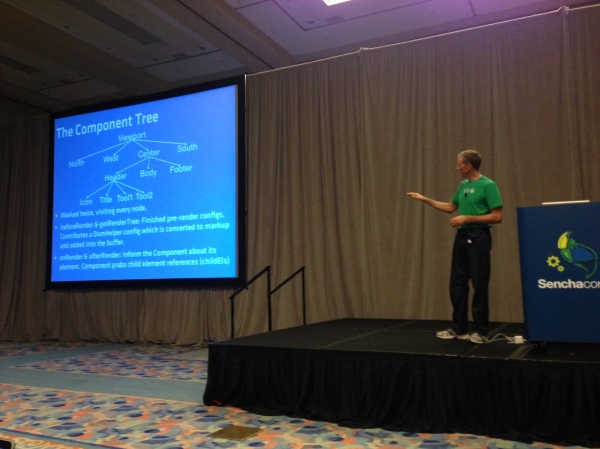
Ext JS has been getting more flexible with each release. You can do many more things with it these days than you used to be able to, but there has been a performance cost associated with that. In many cases this performance degradation is down to the way the framework is being used, as opposed to a fundamental problem with the framework itself.
There's a whole bunch of things that you can do to dramatically speed up the performance of an app you're not happy with, and Nige "Animal" White took us through them this morning. Here's what I was able to write down in time:
Slow things
Nige identified three of the top causes of sluggish apps, which we'll go through one by one:
- Network latency
- JS execution
- Layout activity
Sencha Con 2013 Day 1
Sencha Con 2013 kicked off today, with some stunning improvements demoed across the product set. I'm attending as an audience member for the first time so thought I'd share how things look from the cheap seats.
Keynote
The keynote was very well put together, with none of the AV issues that plagued us last year (maybe they seemed worse from behind the curtain!). It started off with a welcome from Paul Kopacki, followed by some insights into the current status of developers in the world of business (apparently we're kingmakers - who knew!). One of Blackberry's evangelists came up and made a pretty good pitch for giving them a second look (the free hardware probably helped a little...)
The meat, though, was in the second half of the presentation. We were treated to a succession of great new features across Ext JS, Sencha Touch and Sencha Architect, which I'll go into in a little more detail below.
But it was Abe Elias and Jacky Nguyen who stole the show in the end. Unleashing a visionary new product, Sencha Space, they demonstrated a brand new way to enable businesses to elegantly solve the problem of BYOD (Bring Your Own Device).
Sencha Touch 2 - Thoughts from the Trenches
As you may have seen, we put out the first public preview release of Sencha Touch 2 today. It only went live a few hours ago but the feedback has been inspiring so far. For the full scoop see the post on the sencha.com blog. A few thoughts on where we are with the product:
Performance
Performance on Android devices in particular is breathtaking. I never thought I'd see the day where I could pick up an Android 2.3 device and have it feel faster than an iPhone 4, and yet that's exactly what Sencha Touch 2 brings to the table. I recorded this short video on an actual device to show real world performance:

Now try the same on Sencha Touch 1.x (or any other competing framework) and (if you're anything like me) cringe at what we were accustomed to using before. That video's cool, but the one that's really driving people wild is the side by side comparison of the layout engines in 1.x and 2.x.
Getting our hands on a high speed camera and recording these devices at 120fps was a lot of fun. Slowing time down to 1/4 of normal speed shows just how much faster the new layout engine is than what we used to have:
Proxies in Ext JS 4
One of the classes that has a lot more prominence in Ext JS 4 is the data Proxy. Proxies are responsible for all of the loading and saving of data in an Ext JS 4 or Sencha Touch application. Whenever you're creating, updating, deleting or loading any type of data in your app, you're almost certainly doing it via an Ext.data.Proxy.
If you've seen January's Sencha newsletter you may have read an article called Anatomy of a Model, which introduces the most commonly-used Proxies. All a Proxy really needs is four functions - create, read, update and destroy. For an AjaxProxy, each of these will result in an Ajax request being made. For a LocalStorageProxy, the functions will create, read, update or delete records from HTML5 localStorage.
Because Proxies all implement the same interface they're completely interchangeable, so you can swap out your data source - at design time or run time - without changing any other code. Although the local Proxies like LocalStorageProxy and MemoryProxy are self-contained, the remote Proxies like AjaxProxy and ScriptTagProxy make use of Readers and Writers to encode and decode their data when communicating with the server.
Introduction to Ext JS 4
At the end of last 2010 we capped off an incredible year with SenchaCon - by far the biggest gathering of Sencha developers ever assembled. We descended on San Francisco, 500 strong, and spent an amazing few days sharing the awesome new stuff we're working on, learning from each other, and addressing the web's most pressing problems.
Now, we're proud to release all of the videos from the conference completely free for everyone. You can see a full list on our conference site, where you'll find days worth of material all about Ext JS 4, Sencha Touch and all of the other treats we're working on at the moment.
Some of the videos in particular stand out for me - Jamie's Charting and Layouts talks were spectacular, as was Rob's Theming Ext JS 4 talk. On the Touch side, Tommy's talks on Performance and Debugging are required viewing, as is Dave Kaneda's characteristically off the cuff Theming talk.
My personal high point was standing in front of all of you and introducing Ext JS 4 and its three core goals - speed, stability and ease of use. I think you're going to love what we've done with the framework in version 4.
Ext JS 4: The Class Definition Pipeline
Last time, we looked at some of the features of the new class system in Ext JS 4, and explored some of the code that makes it work. Today we're going to dig a little deeper and look at the class definition pipeline - the framework responsible for creating every class in Ext JS 4.
As I mentioned last time, every class in Ext JS 4 is an instance of Ext.Class. When an Ext.Class is constructed, it hands itself off to a pipeline populated by small, focused processors, each of which handles one part of the class definition process. We ship a number of these processors out of the box - there are processors for handling mixins, setting up configuration functions and handling class extension.
The pipeline is probably best explained with a picture. Think of your class starting its definition journey at the bottom left, working its way up the preprocessors on the left hand side and then down the postprocessors on the right, until finally it reaches the end, where it signals its readiness to a callback function:
Classes in Ext JS 4: Under the hood
Last week we unveiled a the brand new class system coming in Ext JS 4. If you haven’t seen the new system in action I hope you’ll take a look at the blog post on sencha.com and check out the live demo. Today we’re going to dig a little deeper into the class system to see how it actually works.
To briefly recap, the new class system enables us to define classes like this:
Here we’ve set up a slightly simplified version of the Ext.Window class. We’ve set Window up to be a subclass of Panel, declared that it requires the Ext.Tool class and that it mixes in functionality from the Ext.util.Draggable class.
There are a few new things here so we’ll attack them one at a time. The ‘extend’ declaration does what you’d expect - we’re just saying that Window should be a subclass of Panel. The ‘requires’ declaration means that the named classes (just Ext.Tool in this case) have to be present before the Window class can be considered ‘ready’ for use (more on class readiness in a moment).
Sencha Touch tech talk at Pivotal Labs
I recently gave an introduction to Sencha Touch talk up at Pivotal Labs in San Francisco. The guys at Pivotal were kind enough to record this short talk and share it with the world - it's under 30 minutes and serves as a nice, short introduction to Sencha Touch:
UPDATE: Pivotal got acquired, this link broke. The world moved on.
The slides are available on slideshare and include the code snippets I presented. The Dribbble example used in the talk is very similar to the Kiva example that ships with the Sencha Touch SDK, so I recommend checking that out if you want to dive in further.
Using the Ext JS PivotGrid
One of the new components we just unveiled for the Ext JS 3.3 beta is PivotGrid. PivotGrid is a powerful new component that reduces and aggregates large datasets into a more understandable form.
A classic example of PivotGrid's usefulness is in analyzing sales data. Companies often keep a database containing all the sales they have made and want to glean some insight into how well they are performing. PivotGrid gives the ability to rapidly summarize this large and unwieldy dataset - for example showing sales count broken down by city and salesperson.
A simple example
We created an example of this scenario in the 3.3 beta release. Here we have a fictional dataset containing 300 rows of sales data (see the raw data). We asked PivotGrid to break the data down by Salesperson and Product, showing us how they performed over time. Each cell contains the sum of sales made by the given salesperson/product combination in the given city and year.
Let's see how we create this PivotGrid:
Offline Apps with HTML5: A case study in Solitaire
One of my contributions to the newly-launched Sencha Touch mobile framework is the Touch Solitaire game. This is not the first time I have ventured into the dizzying excitement of Solitaire game development; you may remember the wonderful Ext JS Solitaire from 18 months ago. I'm sure you'll agree that the new version is a small improvement.
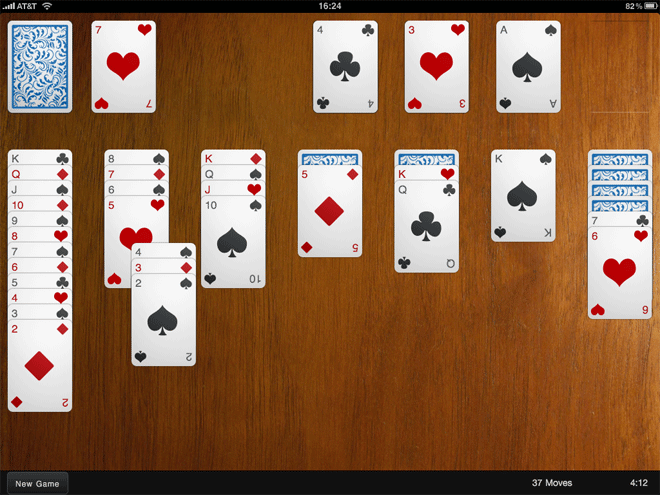
Solitaire is a nice example of a fun application that can be written with Sencha Touch. It makes use of the provided Draggables and Droppables, CSS-based animations, the layout manager and the brand new data package. The great thing about a game like this though is that it can be run entirely offline. Obviously this is simple with a native application, but what about a web app? Our goal is not just having the game able to run offline, but to save your game state locally too.
The answer comes in two parts:
Web Storage and the Sencha data package
HTML5 provides a brand new API called Web Storage for storing data locally. You can read all about it on my Web Storage post on Sencha's blog but the summary is that you can store string data locally in the browser and retrieve it later, even if the browser or the user's computer had been restarted in the meantime.
Ext JS 3.2 beta out today
We pushed out a beta release of Ext JS 3.2 this morning. Although we've marked it as beta, it's a pretty solid release and we expect to release a final version shortly. The DataView transitions are especially fun - watch this space for a fuller example...
Here's a quick rundown of the features we added:
- Multiple sorting and filtering on Stores
- Animated DataView transitions
- Composite Fields
- Multiple handles on Sliders
- Sliders in forms
- A couple of Toolbar plugins
- A new, more accessible theme
One of the big projects we've undertaken that most people probably won't find so exciting is ramping up our internal QA efforts. Our unit test coverage has increased dramatically in the past couple of months, and we've built infrastructure to run all of our tests on every browser/OS we support in a fully automated fashion. Doing TDD on Ext JS is an awesome feeling.
I'll talk more in the future about what we're doing internally to ensure the quality of our code, framework performance and rendering.
2010: The year Ext JS takes over
On January 1st 2010 I officially joined Ext JS to take over the role of lead developer. After living and breathing Ext for the last 3 years I am delighted to have joined the company itself. Ext JS has lead the way in developing rich client side applications since the very first release; this is a tradition we will continue and build upon.
2010 is going to be an extremely exciting year for Ext JS. A new focus is being placed on helping developers create their applications much more quickly, with the help of advanced creation tools and a standardised application architecture right out of the box.
We will continue the performance improvements started in 3.1 to make sure that Ext applications really fly. Ext JS 3.2 will be the fastest, most stable version ever released.
2010 is also the year that Ext JS becomes much easier to learn. With a completely reinvented learning section, Ext will no longer take months to learn and understand - even our API documentation will get a facelift.
The upcoming Marketplace will be the perfect venue to find and share new, high quality components created by our awesome developer community. Think of the Marketplace as the App Store for Ext JS - full of great offerings that are easy to drop in to any application.
Ext.ux.Exporter - export any Grid to Excel or CSV
Sometimes we want to print things, like grids or trees. The Ext JS printing plugin is pretty good for that. But what if we want to export them instead? Enter Ext.ux.Exporter.
Ext.ux.Exporter allows any store-based component (such as grids) to be exported, locally, to Excel or any other format. It does not require any server side programming - the export document is generated on the fly, entirely in JavaScript.
The extension serves as a base for exporting any kind of data, but comes bundled with a .xls export formatter suitable for exporting any Grid straight to Excel. Here's how to do that:
Clicking the Download button in the top toolbar iterates over the data in the store and creates an Excel file locally, before Base64 encoding it and redirecting the browser via a data url. If you have Excel or a similar program installed your browser should ask you to save the file or open it with Excel.
Making RowEditor use your column renderers
The RowEditor plugin is one of my favourite Ext JS components. It basically allows any row on a grid to be turned into an adhoc form on the fly, saving you the effort of defining additional form components.
Recently I had a grid which had a few fields that don't have an editor, something like this:
Simple stuff - we just show a username and a signup date, which is altered by a renderer. When we double-click a row it turns into an editable row, and we get a textfield allowing us to edit the username. Unfortunately, while in edit mode our date renderer is ignored, and the raw value displayed instead.
Writing Better JavaScript - split up long methods
For the second time this week I'm going to pick on the usually delightful Ext JS library. Last time we discussed the overzealous use of the Module pattern; this time it's the turn of bloated methods.
As before, I'm not really picking on Ext at all - this happens all over the place. But again, this is the library closest to my heart and the one I know the best.
The Problem
We're going to take a look at Ext.data.XmlReader's readRecords method. Before we get started though, I'll repeat that this is intended as an example of an approach, not a whine at Ext in particular.
ExtJS modules and mixins
A few days back Praveen Ray posted about "Traits" in Ext JS. What he described is pretty much what we'd call Modules in the Ruby world, and how to mix those modules into a given class.
Basically, using modules we can abstract common code into reusable chunks, and then include them into one or more classes later. This has several advantages - avoiding code repetition, decoupling code concepts and ease of unit testing among them.
While the idea is good, there is a better way of achieving this than Praveen suggests. Let's say we define the following modules, which are just plain old objects:
Ext.ux.layout.FillContainer
One of the pages on the Ext JS app I'm currently working on has a form with a grid underneath. The page exists as a tab inside an Ext.TabPanel, and uses the border layout, with the form as the 'north' component and the grid as 'center'.
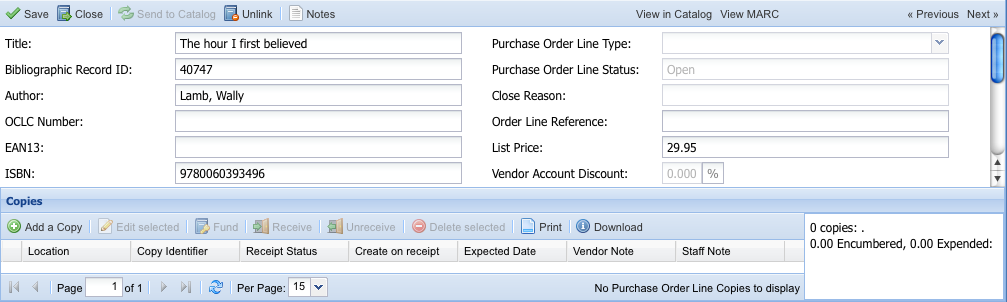
The trouble with this is that the grid shrinks down to an unusable size when the browser window is too small, ending up like this:
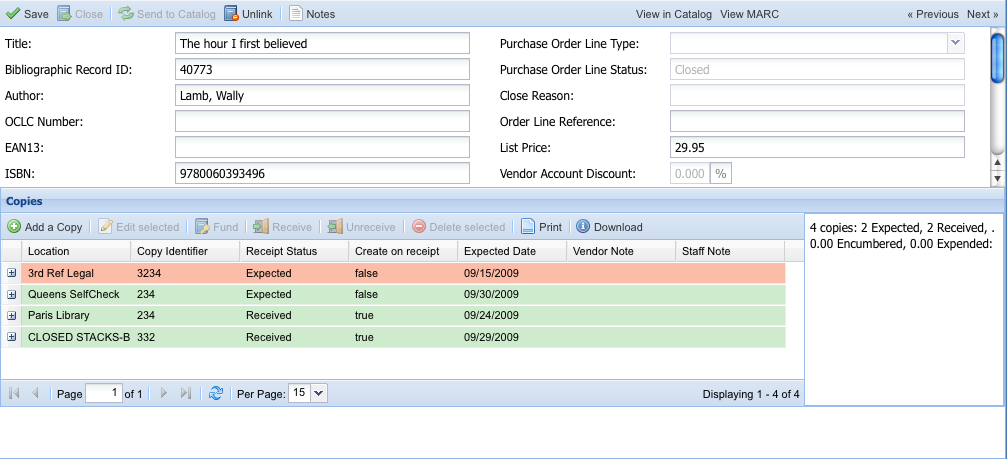
We could alternatively use a basic container layout, but this limits us to a fixed height for the grid, meaning we waste space at the bottom:
Enter the imaginatively named FillContainer:
If our containing panel shrinks to less than 650px in height, the grid will be automatically sized to 250px and a vertical scrollbar will appear on the panel, like this:
Using the ExtJS Row Editor
The RowEditor plugin was recently added to the ExtJS examples page. It works a lot like a normal Grid Editor, except you can edit several fields on a given row at once before saving.
This neatly solves the problem of adding a new row to an editor grid, entering data into the first field and finding it save itself straight away, which is rarely desired. In this fashion we can provide full CRUD for simple models in a single page.
Installation
You'll need to get a copy of the javascript, css and images from the server. This is a bit of a pain. If you still have the ExtJS SDK around you can find these in the examples folder, if not you can get each file as follows:
Grab the plugin JS file below and put it where you usually put your .js files: http://www.extjs.com/deploy/dev/examples/ux/RowEditor.js
This needs to go with your other stylesheets, usually in a directory called 'css': http://www.extjs.com/deploy/dev/examples/ux/css/RowEditor.css
Download these two images and put them into your existing 'images' folder (the same place the other ExtJS images live): http://www.extjs.com/deploy/dev/examples/ux/images/row-editor-bg.gif http://www.extjs.com/deploy/dev/examples/ux/images/row-editor-btns.gif


Ext.decorate
Sometimes you want to override one of the methods in ExtJS that return a configuration object - let's use Ext.direct.RemotingProvider's getCallData as an example, which looks like this:
Our aim is to add an 'authentication_token' property to the returned object. You could provide the full config object again in an override, but usually you're overriding to add, remove or change one or two properties and want to leave the rest unmolested. I used to find myself writing a lot of code with this pattern:
Ext.ux.Printer - printing for any ExtJS Component
After my recent foray into printing grids with ExtJS, I realised I needed to print some trees too. Seeing as some of the work was already done for the Grid example, it made sense to create a common API for printing any Ext.Component. And thus Ext.ux.Printer was born:
Each of the above opens a new window, renders some HTML (just a big table really), prints it and closes the window - all client side with no server side code required. Although trees and grids represent data quite differently internally, we can use the same API on Ext.ux.Printer to print them both.
Ext.ux.Printer uses Renderer classes to cope with a specific xtype, and adding Renderers for other components is easy. At the moment Ext.grid.GridPanel and Ext.tree.ColumnTree are supported out of the box, but let's see how we'd add support for printing the contents of an Ext.Panel:
ExtJS grid page size - letting the user decide
Sometimes you'll be using a Paging Toolbar on a grid and need to give the user the ability to change the number of records per page. One way of doing this is by adding a combobox to the toolbar:
We've set up a simple combo box which allows the user to choose between 15, 25 and 50 records per page. Now let's set up a Paging Toolbar, and a listener to take action when the user changes the selection in the combo box:
Printing grids with Ext JS
Grids are one of the most widely used components in Ext JS, and often represent data that the user would like to print. As the grid is usually part of a wider application, simply printing the page isn't often a good solution.
You could attach a stylesheet with media="print", which hides all of the other items on the page, though this is rather application-specific, and a pain to update. It would be far better to have a reusable way of printing the data from any grid.
The way I went about this was to open up a new window, build a table containing the grid data into the new window, then print it and close. It's actually pretty simple, and with a bit of CSS we can even get the printable view looking like it does in the grid.
Here's how you use it (this is a slightly modified version of the Array Grid Example):
Ext.override - Monkey Patching Ext JS
Ext JS contains a function called Ext.override. Using this function allows you to add functionality to existing classes, as well as override properties of the class. For example, let's say we want to override how Ext.Windows are hidden:
Using Ext.override changes the prototype of the class you are overriding - all instances of Ext.Window will now use the new hide function in the example above.
Overriding other classes can be dangerous, especially when they are classes from a library not under your control. For example, if the Ext.Window class was refactored in a later version, your overrides may no longer work. In some situations you might choose to go down the safer route of augmenting the existing functionality without overriding it. Here's one way we can achieve this using a closure:
Ext JS iterator functions
Ext JS has a number of handy iterator functions. Some, like Ext.each, you probably already know about, but there are a few others lurking around which can be useful in saving yourself a few lines of code. First, let's recap Ext.each:
Ext.each
Ext.each applies a function to each member of an array. It's basically a more convenient form of a for loop:
Ext.iterate
The case for Ext.applyOnly
Update: Ext 3.0RC1 has included something like this, but called Ext.copyTo. Obviously my name is better though.
We should have something like this:
You could use this every time you write a method or class that requires a config Object as one of it's parameters. These methods ought to only apply those properties of the config object they actually need, but usually this will just be done with an Ext.apply(this, config). This means anything in your object could be overwritten by this config object. Sometimes that's a good thing, but sometimes it's definitely not.
Ext.applyOnly() applies only a whitelist of the properties in the config object. These are specified by an optional third argument, which is an array of property names. Here's how you might write applyOnly:
Force Ext.data.Store to use GET
Say you have a simple Ext store:
Which you put in a grid, along with a paging toolbar:
Your grid loads up and the store performs a GET request to /widgets.json, which returns your widgets along with a total (see an example).
Awesome, but now we click one of the paging buttons on the PagingToolbar and we have a problem - our request has turned into POST /widgets.json, with "start=20" and "limit=20" as POST params.
Adding a loading mask to your ExtJS application
Adding a loading mask like the one on the ExtJS API application is a nice way of showing the user that something is happening while their browser downloads the source code. It's also extremely easy to do.
First, place the following HTML above all of your javascript include tags, ideally just after the <body> tag:
If you are currently including javascript files inside the <head>, don't - put them at the bottom.
With a bit of CSS (see below), this provides a white mask over all underlying content, and a loading message. When everything has loaded, remove the mask like this:
Why you should be using History in your ExtJS applications
I've been making a few updates to the ExtJS API documents application recently. The actual updates include remembering which tabs you have open and using Ext.History to go between tabs (you can follow the forum post or see a beta version).
That's not quite ready yet, but what has been made very clear to me is that any ExtJS application with more than one view should be using Ext.History. With History we get urls inside the application itself, we can parse them and dispatch accordingly. For example, I'm using a Rails-like Router, which lets you define an internal url map like this:
The router knows how to decode urls based on the regular expression-like syntax above, and parse the matches into an object - for example:
ExtJS Solitaire
Update: We recently released the updated Touch Solitaire for Sencha Touch.
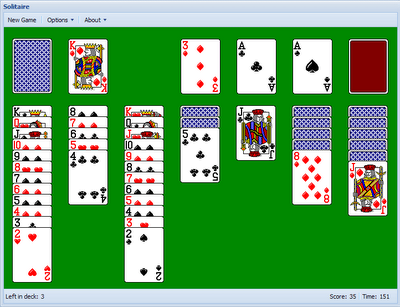
For a bit of fun over Christmas I thought I'd try my hand at writing Solitaire using the ExtJS library. The results of my efforts can be seen over at http://solitaire.edspencer.net.
It's reasonably complete, with the familiar drag and drop moving of cards (and stacks of cards). Most of the interface is custom built, with classes representing Cards, Stacks, the Pack, etc. The main motivation for creating this is to give a real-world example of using Drag and Drop with Ext JS, as documentation for it can be hard to come by. The full source of the game can be found on github, and I encourage people to take a look at and/or improve the code if they wish.
A few stats: the game comes to 1300 lines of code, including generous comments and whitespace. It's 15k minified, and uses a custom Ext build. It took roughly 25 hours to put together, which was mostly spent researching how to use Ext's many D&D classes.
The reason I'm releasing it now is that I'm currently working on a much larger, more exciting open source ExtJS project which I want to concentrate on before releasing. If anyone wants to pick this up feel free to fork the code on Github or get in touch in the comments or in #extjs on IRC.
ExtJS Textmate bundle
** Update 2:** I've recently cleaned up the bundle, removing stale snippets. It's now located at https://github.com/edspencer/Sencha.tmbundle
** Update:** Added extra instructions when downloading the bundle instead of git cloning it. Thanks to TopKatz for his help
I develop on both OSX and Windows machines, and my editors of choice are Textmate and the excellent Windows clone E. One of the great things about Textmate is its bundle support, which allows you to create reusable code snippets (among other things).
I've got a good collection of these built up so thought I'd make them available on Github. You can install it like this:
Using Ext.History
Ext.History is a small class that was released with ExtJS 2.2, making it easy to use the browser's back and forward buttons without breaking your AJAX-only pages.
This can be really useful for any ExtJS application with more than one view, for example a simple app with a grid of Products, which can be double-clicked to reveal an edit form. Ext.History allows the user to click the back button to go back to the grid if they're on the form, and even forward again from the grid. It does this by appending a token to the end of the url:
This is useful, so let's look at how to set it up. Ext.History requires that a form field and an iframe are present in the document, such as this:
Custom containers with ExtJS
ExtJS has several built-in Container classes - classes which can contain one or more other Ext.Components (such as Grids, Forms, other Panels, etc). The most obvious example of a Container is the Ext.Panel class, along with its subclasses such as Ext.TabPanel, Ext.form.FormPanel and Ext.Window. With each container class you can add a bunch of components, like this:
Which will just create a Panel with three other Panels as its child components ('panel' is the default xtype, so we don't have to specify it). More to the point, you can add and remove components from the Container like this:
Weird bug preventing ExtJS checkboxes from submitting properly
This applies to ExtJS 2.2, the most current version as of the time of writing.
Checkboxes often make their way into my Ext JS forms. Sometimes, though, they don't behave as expected. Checking and unchecking them would frequently fail, simply not doing anything. Sometimes it would work, sometimes it wouldn't - how frustrating!
It turns out there is a bug with ticking/unticking checkboxes in Ext. If you click on the checkbox itself everything works fine - the image of the checkbox updates and the correct value is submitted. If however you click on the checkbox's label, the image of the checkbox is updated but the correct value is not submitted. So if the box started off unticked and you ticked it by clicking the label, the image is updated but nothing else happens.
This is extremely unintuitive because you can see that the box has been checked, but its internal representation hasn't actually changed. Because I usually click the label this took me over an hour to track down, so I hope this helps someone out. Once I had identified the bug, a quick Google search points to this thread on the ExtJS forums, which has some guidance on this.
How Ext.apply works, and how to avoid a big headache
Ext.apply is one of those magic Ext JS methods which copies the essence of one object onto another. You usually call it like this:
Where defaults are optional. If you supply defaults, Ext.apply actually does this:
In other words, the order of precedence of the three arguments goes like this: any properties in receivingObject which are also present in defaults will be overwritten by the property in defaults. After that has happened, any properties which are present receivingObject (after defaults have been applied) and also present in sendingObject will be overwritten by the sendingObject value. More graphically:
Cleaning up an example Ext JS form
One of my recent Ext JS forms had a section which looked like this:
Not horrific but not nice either - let's DRY this up. It's not too pleasant to read but all it's really doing is rendering a customised Ext.Button which opens up a modal Ext.Window, in which is loaded the contents of a known url.
Ok so let's start with that Window. First, we'll make a subclass of Ext.Window:
ExtJS Radio Buttons and Square Brackets
While creating an ExtJS form with several radio buttons today I ran into a bug which caused none of them to work as expected, even though there were no errors/exceptions. To cut a long story short, it was because I was setting the name to "schedule[include_type]" - like this:
This radio button is one of 4, which allows the user which type of file they want to include on a particular model (a Schedule in this case) - be it Page, Video, Category or one other. The thing is - none of them work with the square brackets in the name. If you remove the brackets, they all work correctly, but the server-side is relying on those brackets to be present to group the data correctly.
In the end I bit the bullet and updated my submit method to add a new parameter directly - here's a full example:
Useful Rails javascript expansions for EXTJS
If you're using Edge Rails (or > 2.1, which isn't out at time of writing), and are using the EXT JS framework anywhere, here are a couple of handy javascript include tag expansions to clean up your views. Just chuck them into any file in your config/initializers directory:
The top one includes the relevant EXT base files and the second one includes all the Grid Filters from the excellent Filter Grid plugin (see http://ccinct.com/lab/filter-grid/.
EXT remote-loading forms with Combo boxes
Something that's harder than it should be is populating an EXT edit form with form data, where one of the form fields is a select box. If there is a specific set of values that this select can take, then you can hard code that using a SimpleStore, like this:
So that will populate the select box with the static values you've defined (the 5 states above), then when the form loads it will select the appropriate option automatically.
Getting EXT PagingToolbars to save state
A problem that has recently had me pulling my hair out is how to save state in an EXT PagingToolbar.
Ext makes it easy to save the state of most of its components - by default it does this by setting a cookie with the relevant configuration info, then just reading it back when you load the component again. I've been using it to save the state of a few EXT grids I've been using on a recent project, this saves config such as which columns you have visible, which column you're sorting by, and how the columns are ordered.
That works great, and is trivial to implement - just set your provider (see http://extjs.com/deploy/dev/docs/?class=Ext.state.CookieProvider) and be sure to give your grid an id in its config - this is used as the key in the state provider and needs to be unique for each component.
The problem comes when you're using a paging toolbar though, as this does not save state, so every time you view the grid you're back to page 1. You can add state behaviour to the paginator by piggybacking the grid's state store, here's how it's done: