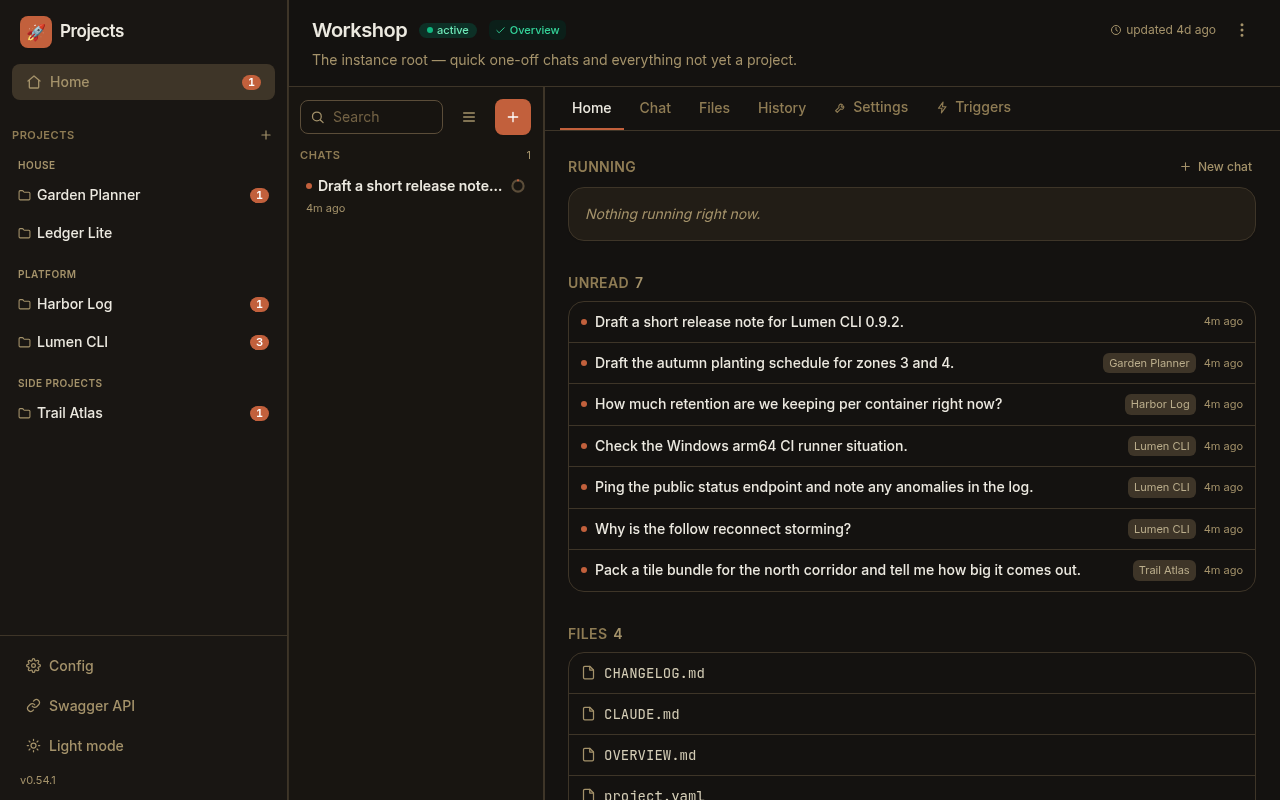
Paddock is a better interface for Claude Code. I created it because I love Claude so much that I keep dozens of them going, whether they're writing code or helping me plan my hot water tank install, or managing my homelab for me. But the CLI isn't really set up for managing a bunch of weeks-long Claude Code sessions, and UX-wise it's got some obvious challenges.
Paddock organizes your Claude Code sessions, lets you resume them from anywhere, and provides a much better interface for managing them. It can work alongside your existing Claude Code setup - you don't have to choose between the two. And it now works out of the box on your laptop with a single npx command. Try it out like this:
npx @edspencer/paddock -o
npx @edspencer/paddock -o
Paddock works with your MCP servers, your plugins, your existing chats, and your Claude Max account:
Meet Paddock in under two minutes
Paddock has a ton of features that I won't dive in to here, but the 2 minute video above should give you a flavor and I'll probably post a longer one at some point. There's a full documentation site if you want to learn more. Check out the getting starting and what's new pages, along with the Paddock repo itself.
Paddock Discovers Existing Claude Code Sessions
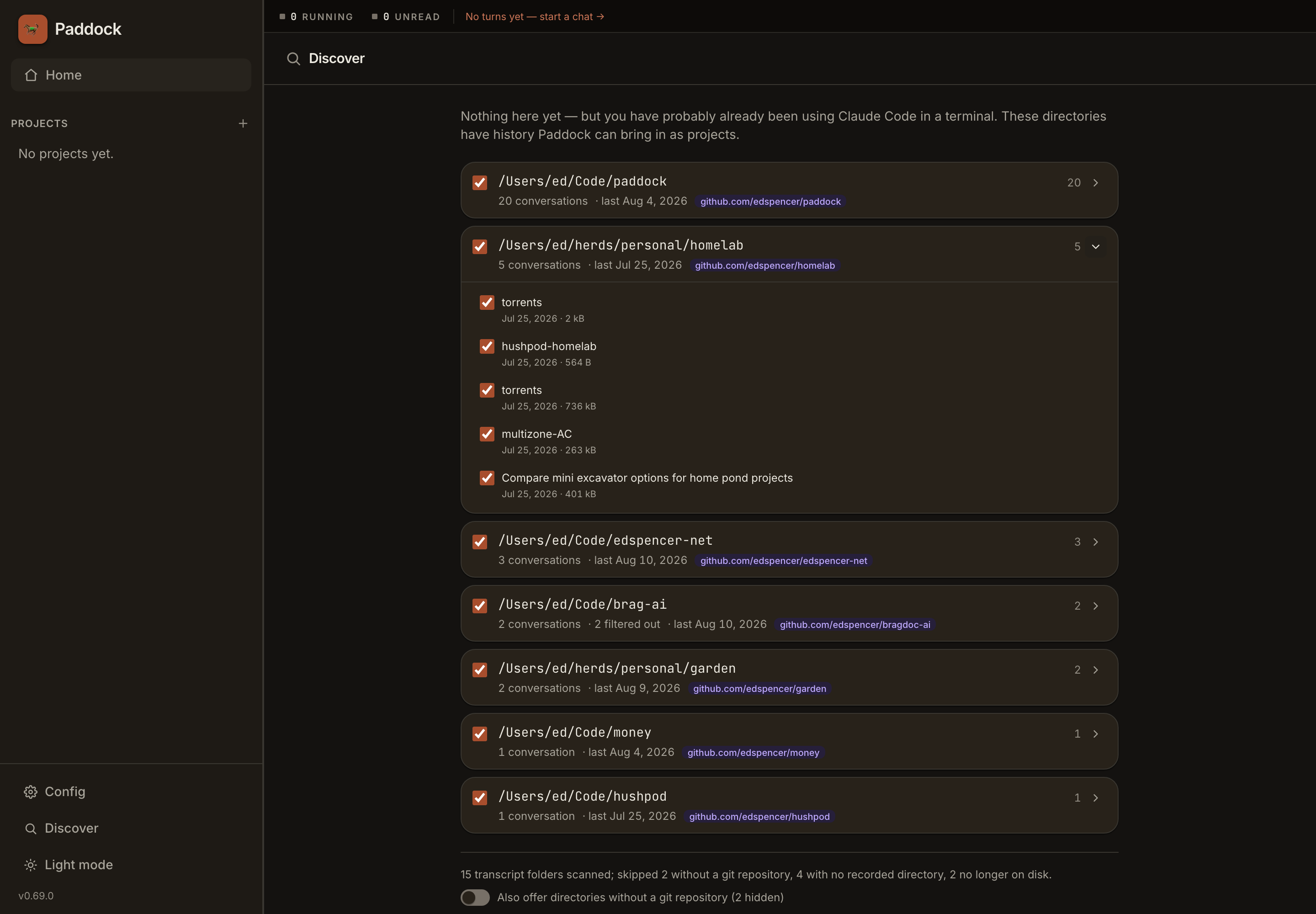
The first thing Paddock does when you boot it up is scan for existing Claude Code sessions on your machine. It gathers these together into Projects grouped by folder, allowing you to adopt those existing chats into Paddock:
Paddock lets you adopt your existing Claude Code sessions with a few clicks.
Paddock, Claude Code or both?
Paddock works with or without Claude Code installed, as it bundles the Claude Agents SDK, which it calls via herdctl. But it also co-exists peacefully with existing Claude Code installs, and depending on how you configure it, it will either work alongside Claude Code or operate independently.
The claude section of the Paddock Config file controls how Paddock interacts with Claude Code. If you set transcripts to 'host', Paddock will share the same transcript files as Claude Code, meaning that chats you have in Claude Code show up in Paddock and vice versa. Also, credentials generally Just Work, supporting either an ANTHROPIC_API_KEY, a CLAUDE_CODE_OAUTH_TOKEN or picking up your Claude Code session if you've logged in that way.
paddock.config.yaml
... other configs above...

claude:
  transcripts: own    # own | host — default own (e.g. we silo our own transcripts vs share with Claude Code)
  credentials: host   # own | host — the one key that defaults to host
  instructions: own   # own | host — your ~/.claude CLAUDE.md, agents, commands, plugins
  hooks: own          # own | host — shell commands your settings.json binds
  mcpServers: own     # own | host — the servers you added with `claude mcp add`
paddock.config.yaml
... other configs above...

claude:
  transcripts: own    # own | host — default own (e.g. we silo our own transcripts vs share with Claude Code)
  credentials: host   # own | host — the one key that defaults to host
  instructions: own   # own | host — your ~/.claude CLAUDE.md, agents, commands, plugins
  hooks: own          # own | host — shell commands your settings.json binds
  mcpServers: own     # own | host — the servers you added with `claude mcp add`
Transcripts default to own out of paranoia - I don't want to risk my vibe-coded open source project somehow deleting your ~/.claude directory. But host is a much better option IMO, as it means you can still fall back to the Claude Code CLI if Paddock does something obnoxious.
MCP Servers can be turned on or off. There are lots of different ways Claude can be set up with MCP and I haven't tested them all, but if you have a Claude Code plugin like Slack installed and authenticated on your laptop, Paddock does indeed pick that up. YMMV though, definitely worth consulting the docs,
Keeping it running
npx is a terminal tab, and Paddock stops when you close it. Once it stops being a
thing you're trying and starts being a thing you use:
npm i -g @edspencer/paddock
paddock service install
npm i -g @edspencer/paddock
paddock service install
That writes one launchd agent on macOS, or a systemd --user unit on Linux, pointing at
the same ~/.paddock instance — so it's there when you log in. paddock service uninstall removes it, and it's the only file Paddock ever writes outside its data
directory. I've done zero testing on Windows, sorry.
To get started with Paddock on your laptop, follow the Getting Started guide. Or, just try it out right fraking now:
npx @edspencer/paddock@latest -o
npx @edspencer/paddock@latest -o
If you don't like it, just delete the ~/.paddock directory and you'll be back where you started.
There is an extensive set of deployment guides in the Paddock documentation, with recipes for how to deploy with docker, on Proxmox, on Kubernetes, or wherever else. The paddock-deploy repo contains all the deployment configurations - just point your local Claude Code at one of those links and it'll do the rest for you.
Paddock is a thin wrapper around Claude Code that runs it on a server and gives it a web UI — persistent, resumable chats you can reach from any laptop or phone, with forking, sub-agents, file sending and schedules on top. Here's why I built it and how it works.
herdctl is an orchestration layer for Claude Code. It lets your agents run on a schedule, as part of a fleet, and puts them right in your discord or slack channel.